Generate Pricing Blog
AI Tattoo Generator

AI tattoo generator — one idea, four directions

Describe the tattoo you want. InkBolt generates a sketch, two finished style directions, and a placement preview in a single pass — compare them side by side, refine your favorite, export artist-ready.

InkBolt Engine v1

Tuned for tattoo linework & shading

Sign in for credits
0/300
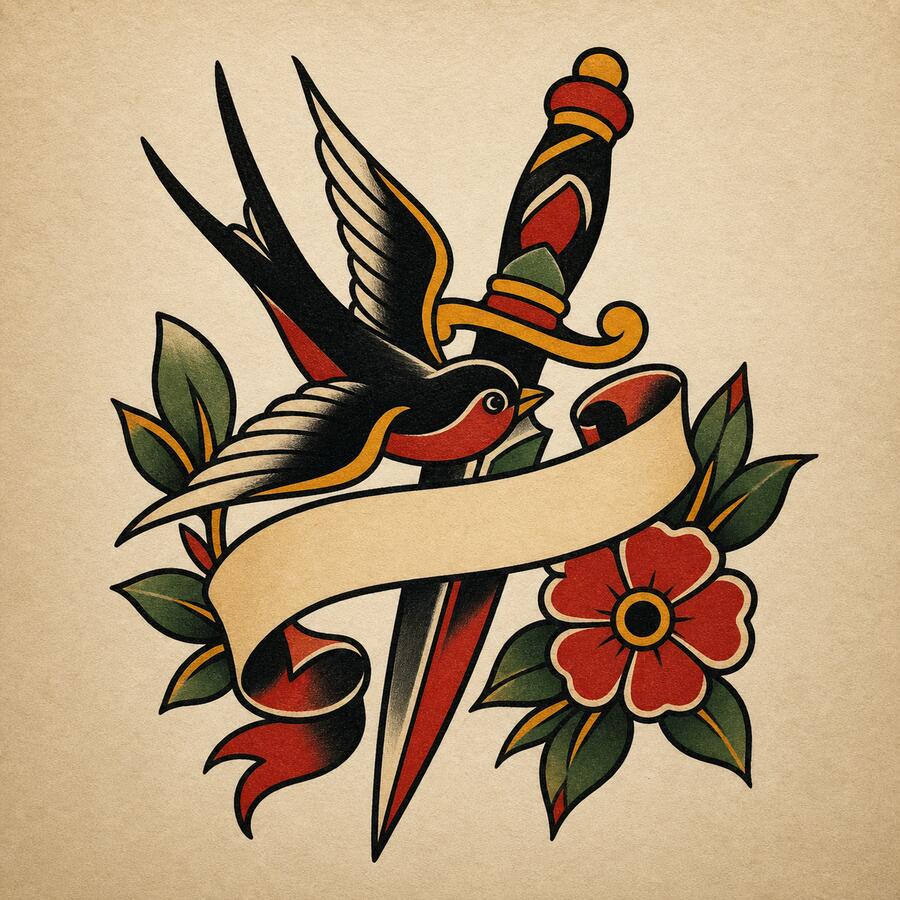
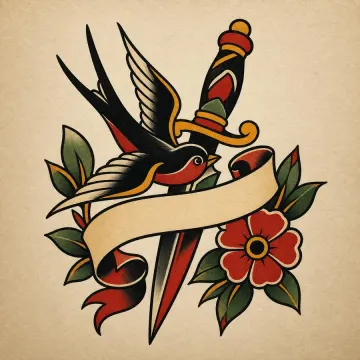
Traditional American tattoo design sample

Your design appears here

Describe an idea on the left, then hit Generate — defaults are already set.

sketch selected Line-art tattoo sketch sample generated by InkBolt
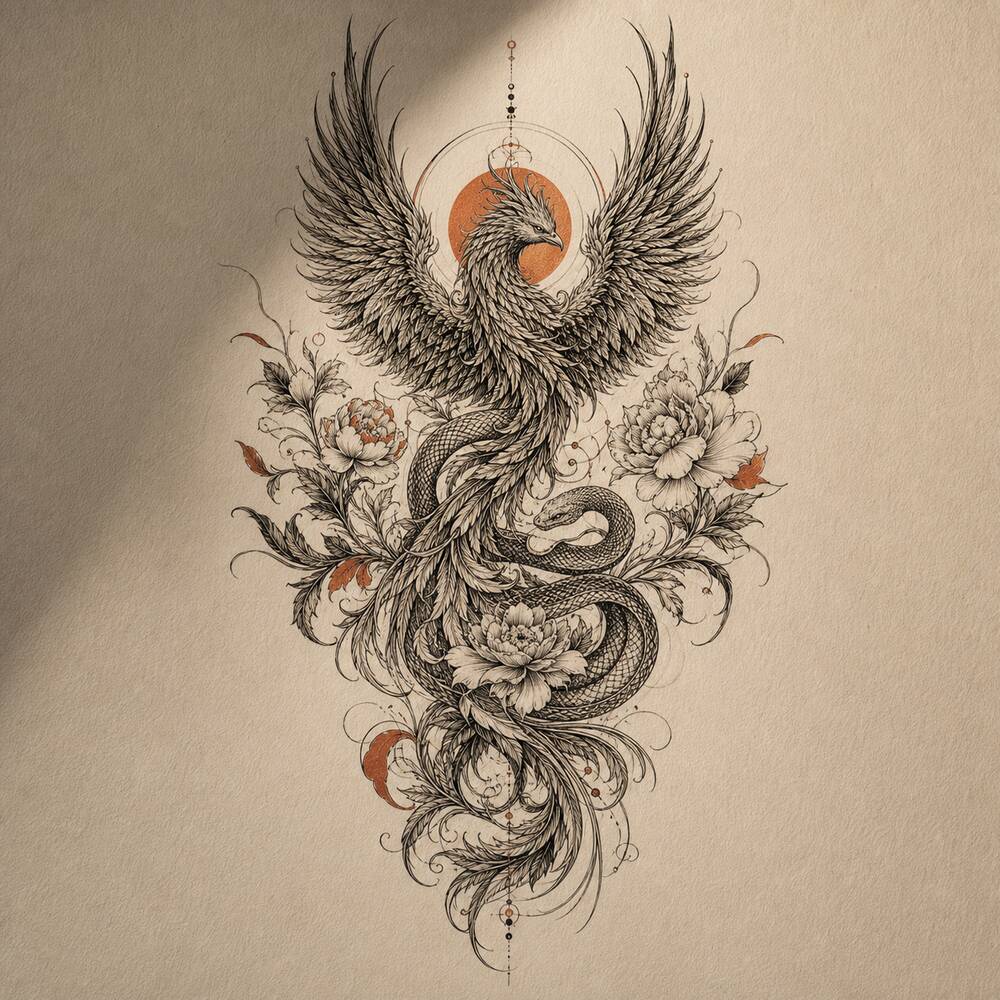
direction A Finished blackwork tattoo direction sample
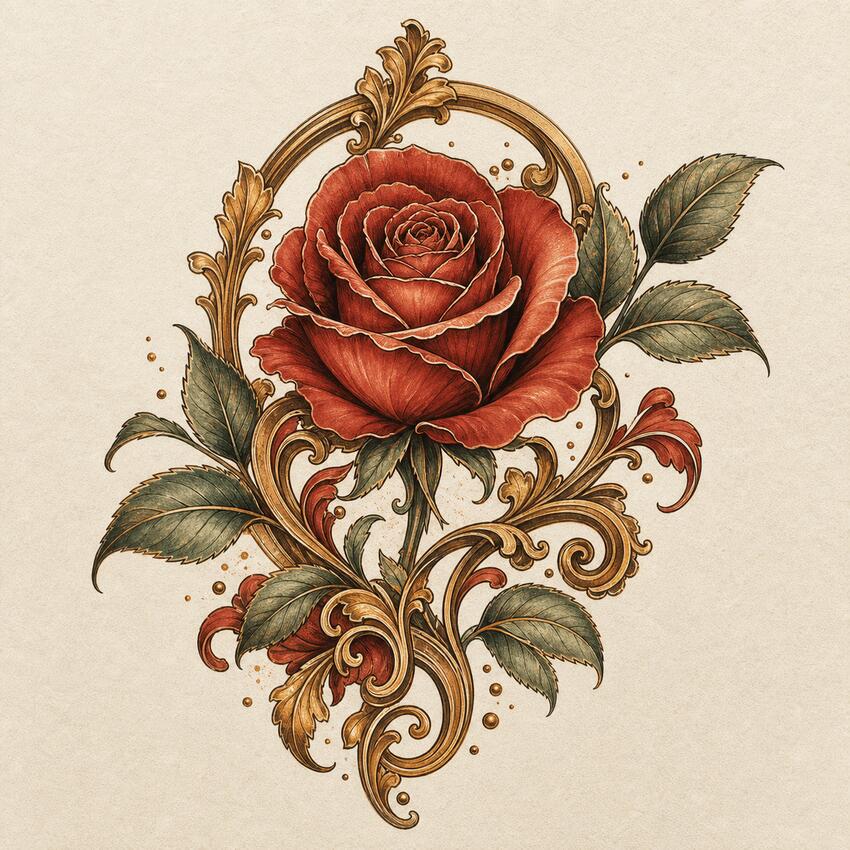
direction B Finished geometric tattoo direction sample
placement Placement preview of a tattoo design on skin
1024×1024 · PNG generated in ~14s
How it works

Describe, compare, refine

Three steps, one generation call — no quiz, no scenario picker.

01

Describe

Type the idea in plain language and pick a style — Japanese, blackwork, geometric, or any of the 10 available directions.

02

Compare 4 directions

One generation returns a sketch, two finished variations, and a placement preview — side by side, ready to judge at once.

03

Refine, Try-On, Export

Preview your favorite on-body, adjust the prompt, then export an artist-ready file to bring to your appointment.

Four outputs per generation

Each run returns a line sketch, two finished directions, and a placement preview so users can compare before choosing.

Clear credit boundary

Starter credits create watermarked previews. Credit packs continue generation; Pro unlocks clean, watermark-free downloads.

Private planning space

Prompts, reference photos, and generated tattoo ideas stay in the user's account and are not published as public galleries.

Before you bring it to an artist

  • Use the line sketch as a reference for an artist, not a final stencil guarantee.
  • Upload a reference photo when shape, pose, or style matters.
  • Check placement and scale before committing to a studio appointment.
Try-On

See it on your skin before you commit

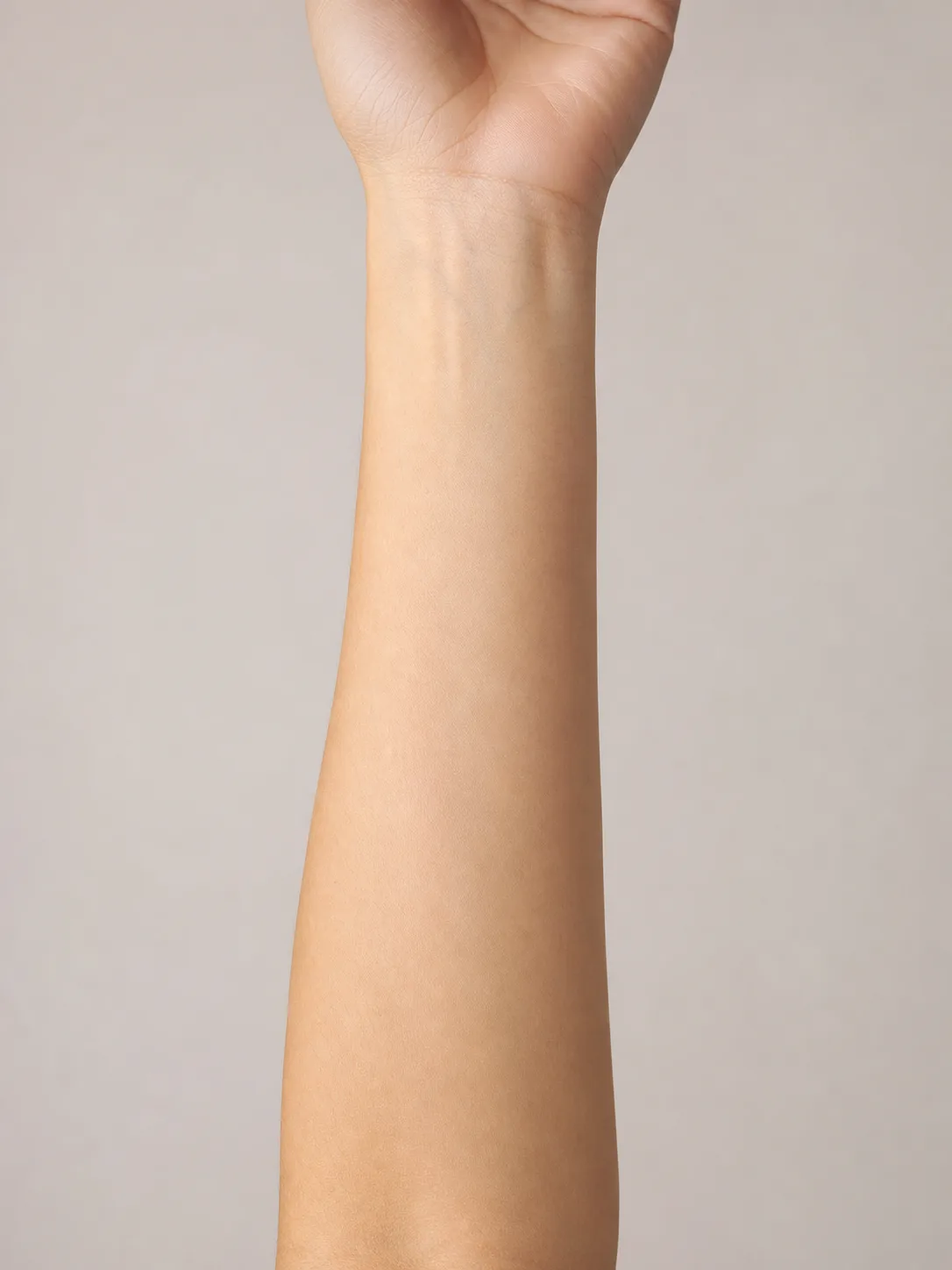
Bare forearm before tattoo placement
Forearm with geometric tattoo placement preview

Placement preview, generated with your set

Every 4-image set already includes a placement preview. Upload your own photo in the Try-On tool for a closer, angle-matched look before you book the appointment.

Open Try-On
10 tattoo styles
4 outputs per generation
10 placement options
Pricing

Start free, upgrade when you're ready

8 free credits covers 4 starter generations — no card required.

Most popular Pro subscription
$14.99 / month
  • 200 credits every month
  • Watermark-free HD export
  • All 10 styles + Try-On + Font
Go Pro
Credit packs
$4.99 25 credits
  • No subscription, pay as you go
  • Credits never expire
Buy credits

How the AI tattoo generator works

InkBolt turns a one-line idea into artist-ready tattoo designs. There's no learning curve and no blank-canvas anxiety — defaults are pre-filled, a random-idea button is one click away, and the prompt optimizer turns two words into a detailed brief. You land directly in the studio, generate, and refine until a direction is worth booking.

A strong AI tattoo generator should do more than make a pretty picture. Tattoo design has real constraints: line weight has to survive healing, tiny details need enough skin area, and a design that looks dramatic on a square canvas may feel awkward on a forearm, shoulder, rib, or ankle. InkBolt is tuned around those constraints. Each set includes a clean line sketch for the artist conversation, finished design directions for visual taste, and a placement preview so you can judge scale before you commit.

Use the prompt box like a studio brief. Start with the subject, then add mood, body placement, style, and any hard limits. For example: "minimalist phoenix for inner forearm, fine line, no color" gives the tattoo generator a clearer job than "phoenix tattoo." If you already have a drawing, logo, pet photo, or reference image, use the image to tattoo flow to convert that source into tattoo-safe linework instead of asking the model to invent from scratch.

1

Describe it

Type a sentence — or hit the dice for inspiration, or upload a reference image to start from.

2

Pick a style

Choose from ten tattoo styles. Every parameter has a sensible default, so you can generate with zero setup.

3

Generate four directions

Get a sketch, two finished designs, and a placement preview at once, with the model's plan streamed live.

4

Refine your favorite

Tell us what to change and we make a new version — your originals stay untouched in the history strip.

Choose the right InkBolt tool for the job

Different tattoo decisions need different starting points. Use the main generator when your idea is open, or jump into a focused workflow when you already have a reference image, lettering phrase, body photo, or download decision.

How to get a tattoo design your artist can actually use

The biggest mistake with AI tattoo ideas is accepting the first attractive image as a final stencil. A tattoo artist still needs to adapt the design to skin, needle grouping, placement, and long-term aging. Treat InkBolt as a fast concept studio: generate several directions, pick the composition that fits your body, then bring a clean reference to your artist for professional redrawing.

Look first at the silhouette. A design with a clear outer shape usually reads better from a distance and gives your artist room to simplify the inside. Next, check the darkest areas. Heavy black can anchor a sleeve or chest piece, but on a small wrist tattoo it may close up as the ink settles. Finally, compare the line sketch with the finished render. If the idea only works because of painterly shading, ask the generator for a simpler blackwork, geometric, or fine-line variant.

The refine step is designed for this review process. Keep the concept you like, then ask for one focused change: larger flowers, fewer background elements, bolder outline, more negative space, softer shading, or a different placement. Focused refinements preserve the core composition and make the next version easier to judge.

When to use text prompts versus image to tattoo

Text prompts are best when the idea is still open: "Japanese crane with storm clouds," "small memorial tattoo for my dog," or "geometric mountain linework." The AI tattoo generator can explore style, composition, and placement quickly, which helps when you know the feeling but not the final shape.

Image to tattoo is better when the source matters. Use it for a family handwriting sample, a pet portrait, a brand mark you want reworked, a sketch from your notebook, or a photo with a specific pose. The goal is not to copy the reference literally. The goal is to translate it into tattoo language: fewer micro details, stronger contour, clearer light and shadow, and enough negative space for the design to heal cleanly.

For the best result, upload a high-contrast reference and describe what must stay. "Keep the cat's sitting pose, simplify the fur, make it blackwork" is a better brief than uploading the photo alone. The generator will keep the important identity cues while producing a tattoo design that a human artist can refine for the chosen body placement.

Style and placement choices that change the result

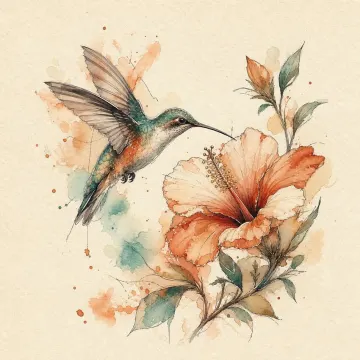
Style is not just decoration. Minimalist and fine-line tattoos need cleaner subjects and more breathing room. Traditional and neo-traditional styles can handle bold color, thick outlines, and compact compositions. Japanese and blackwork designs work well for larger body areas because they can use flow, panels, and dark shapes to follow the body. Watercolor looks expressive on screen, but it should be paired with enough line structure so the tattoo still reads after healing. If you are unsure, generate the same prompt in two styles and compare which one keeps the idea legible at the size you actually want.

Frequently asked questions

Is the AI tattoo generator free? +

Yes. You get 8 free credits as soon as you sign in. You can view watermarked previews for free. Pro unlocks clean, high-resolution downloads; credit packs add more preview generations.

How does it work? +

Describe your idea in a sentence, pick a style, and hit Generate. InkBolt produces four directions at once — a line sketch, two finished designs, and a placement preview. Like one? Use Refine to tell us what to change without starting over.

What tattoo styles are supported? +

Traditional, minimalist, watercolor, geometric, realistic, Japanese irezumi, tribal, dotwork, blackwork, and neo-traditional — each tuned for tattoo-appropriate linework and shading.

Can my artist use these designs? +

Absolutely. The line sketch is built to hand off to a tattoo artist as a starting point, and Pro lets you download a clean, high-resolution file.

Do you store my ideas? +

Your prompts and designs are private. We never publish your creations or sell your data.